
Body Composition Module — Interface Overview
When you open a profile, the Body Composition module is selected by default.
This module is the core of Formetrix. It allows you to:
-
record anthropometric measurements
-
calculate composition metrics
-
derive interpretation indexes
-
track changes over time
The Body Composition module operates in two modes:
-
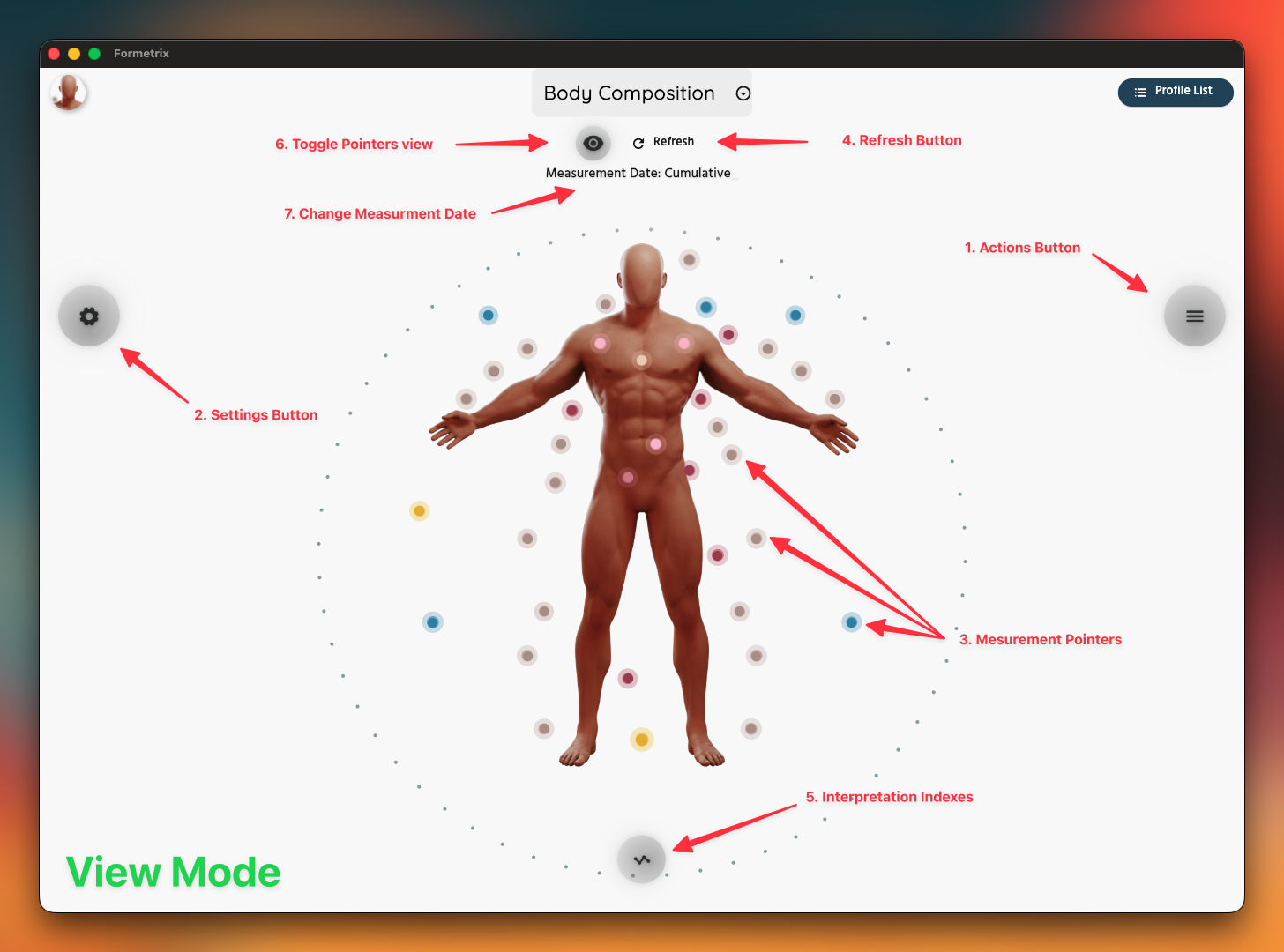
View Mode
-
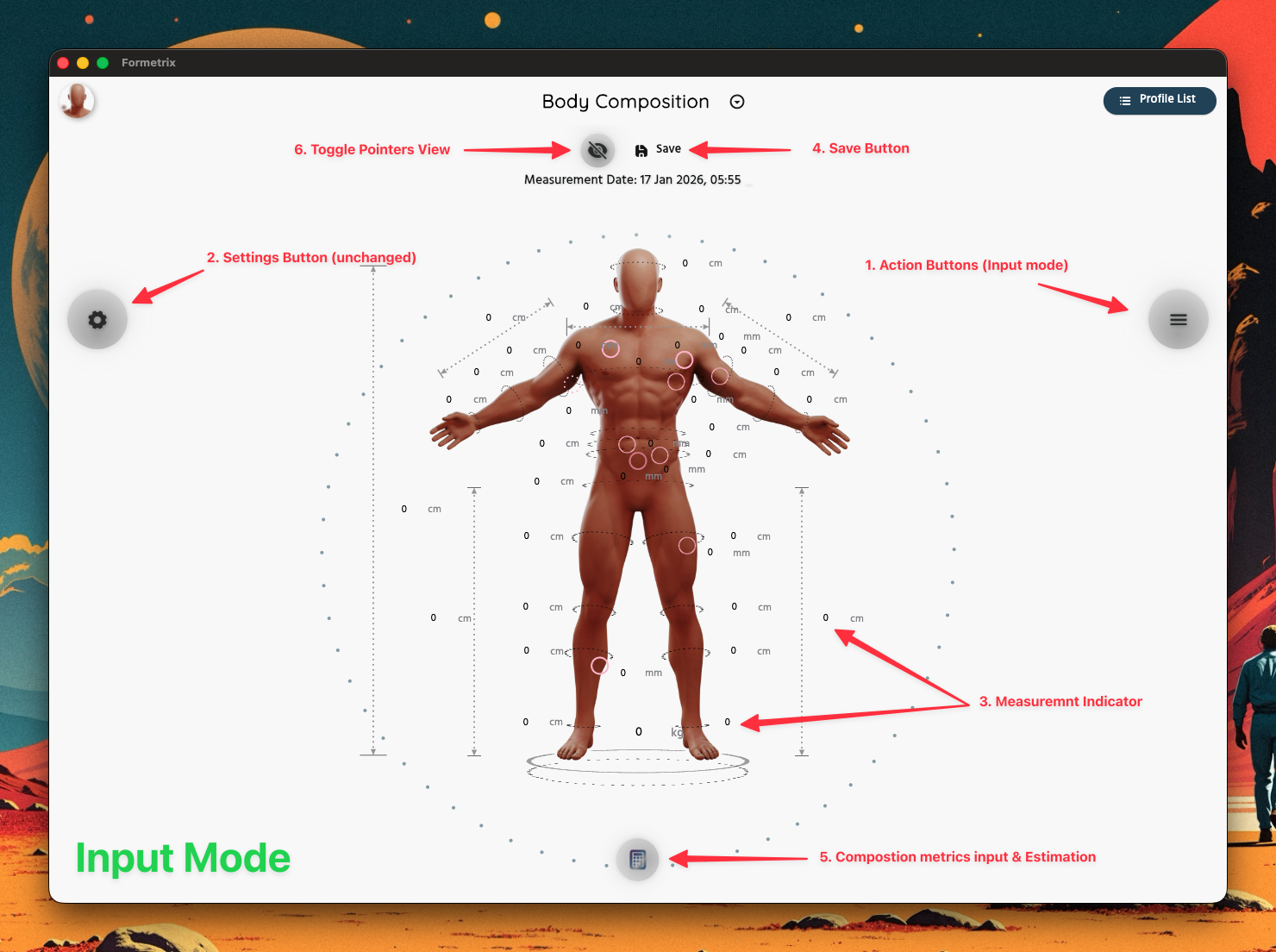
Input Mode
View Mode
View Mode is designed for exploration and interpretation.
In this mode, you can:
-
tap on measurement points to inspect values
-
view historical charts for individual measurements
-
explore additional details for calculated indexes
By default, measurement points are collapsed. This is indicated by a subtle ripple marker rather than expanded measurement lines.
Collapsed points reduce visual clutter and make it easier to focus on specific areas.
Comparison examples:
Input Mode
Input Mode is used when recording a new measurement. This mode can be accessed by starting a new measurement.
In this mode:
-
measurement points become editable
-
values are calculated live as you enter data
-
a banner at the top indicates which measurement is currently being edited
This design minimizes input errors and keeps context clear during data entry.
Interface Elements
1. Actions Menu
Provides access to profile-level actions, including:
-
adding a new measurement
-
View mode: opening measurement history / Input Mode: adjust carry over values from a specific measureemnt
-
printing or exporting data
-
AI-assisted tools
-
body composition guidance
2. Settings
Controls visualization and behavior options, such as:
-
visible measurement points
-
pointer state (collapsed / expanded)
-
measurement units
You also have access to utility tools, including:
-
unit conversion (metric and imperial)
-
and more.
3. Measurement Points
Interactive markers representing specific measurement locations on the body model.
Default behavior
-
View Mode: Measurement points are collapsed
-
Input Mode: Measurement points are expanded
-
When collapsed, a subtle ripple indicator shows the location of each measurement point
-
When expanded, a measurement line or circumference circle is displayed, clearly indicating how and where the measurement is taken
Interaction
-
tapping a point expands it and shows the measurement value
-
tapping again behaves differently depending on the mode:
In View Mode
-
opens the historical chart for that measurement
-
shows additional details if available
-
tapping the close icon collapses the point again
In Input Mode
-
allows direct entry of a new value
-
updates derived metrics and indexes live
Collapsed measurement points exist to:
-
reduce visual noise
-
allow focus on selected areas
-
improve overall usability
4. Refresh / Save
View Mode
-
reloads the latest data from the database
-
re-syncs values
-
resets the interface to the default collapsed state (Useful in case of any UI Bugs)
Input Mode
-
becomes a Save action
-
stores the current measurement session
See first-measurement for details on how measurements are saved and validated.
5. Interpretation Indexes
Provides access to calculated interpretation metrics derived from measurements and trends.
-
if required inputs are missing, a warning is shown
-
tapping the info icon explains:
-
how the index is calculated
-
which values are used
-
what the index represents
-
how your value is interpreted
-
-
tapping the index card itself opens its historical timeline
You can access the full set of indexes (including composition metrics) via the More Indexes option from the top right of the carousel.
Input Mode
-
displays a live report including composition and interpretation indexes
-
values update dynamically as measurements are entered
6. Toggle All Measurement Pointers
Shows or hides all measurement indicators at once.
This is useful when:
-
focusing on the body model
-
reducing visual complexity
-
reviewing interpretation without distractions
7. Measurement Date Selector
View Mode
-
The displayed text alternates between the measurement date and the measurement alias (if one was provided)
-
Tapping the selector opens the measurement history dialog, where you can:
-
Switch between individual measurement dates and the cumulative view
-
Sort and filter measurements
-
Access measurement notes and aliases
-
Input Mode
-
Date selection is disabled
-
Only the current measurement date and time are shown
Note
On smaller screens (such as phones), control placement may differ, but behavior and functionality remain identical.